Beginner's Basics
Introduction
Control Panel
Interfaces
Character Appearance (separate page)
Chatting
Chat Effects (separate page)
Emotes (separate page)
Glossary (separate page)
Gravestones (separate page)
The Wilderness
Death
Skills (separate page)
Ironman Modes
Other Features
Rules
Credits
Introduction
Welcome to RuneScape, the massive online adventure game by Jagex Ltd.! RuneScape offers many features and varieties within itself to keep everyone playing it with something to do - a vital characteristic of a game you play! Throughout RuneScape, you will be able to participate in activities that help level up various skills, battle ferocious beasts, complete quests that tax your intellectual abilities, congregate with other people playing the game, and much, much more!
The purpose of this guide is to help you take your first steps in RuneScape. Throughout this guide, we will explain a lot of things a new RuneScape player needs to know such as creating your character, controlling your character, interacting with various people and objects, and much, much more! However, as it has already been mentioned, you will be interacting with other players, of which runs security risks.
When you're ready to create your RuneScape account, go to RuneScape.com and click on the "Play Free Now" button on the home page, once the game loads click the "Create Account Now" link, the game client will then take you through the process of registering for RuneScape.
Once the game loads, enter your email address and password you used earlier to register (older accounts will login using a username instead of an email address).

Note: Players with existing Facebook and Runescape accounts can alternatively log directly into the game from their Facebook pages. Click the Facebook icon beneath the "Play Now" button on Runescape's main site to install the app which allows this. You can also login with a G+ or Axeso5 (grandfathered if you had an account through them prior to the closing of the Spanish servers.)
Next you will be taken to the "Lobby". Here, you can enter the game, change your settings, chat in a friends or clan chat, or chat with your friends via the private message system. Below is a picture of the Player Info screen, which you will see after logging in.
The following is an explanation of their function:
- Play now: Play the game!
- Favourite Worlds: Next to the "Play" button are 3 smaller buttons that automatically enter you into any world you have set. You can set these worlds to your own preference. This can be done in the World Select screen. Clicking this button enters the game.
- Options: Jagex smuggles away a lot of important information such as your membership days remaining, link to messasge inbox, links to validate your email or set up authenticator, etc.. They are in the blue box as outlined in the image above. Hover over each one for more details.
- World Select Tab: This allows you to change worlds. You can also set up to two default worlds which will appear on the main screen. Click a world to highlight it, then click the "Click Here to Play" button to enter that world.
- Friends Tab: Displays your friend and ignore lists and allows you to talk to your friends. Click their name in your friend list or in the chat box to send a message. You can also change how people see your online status (either to Everybody, Friends, or Nobody). Chatting with friends is explained more in-depth later.
- Friends Chat Tab: Displays the menu for Friends Chat. Here you can enter a channel and talk to other players that are in it. Friends Chats are discussed more in-depth later.
- Clan Chat Tab: Displays the menu for Clan Chat. Here you can enter a clan you are in and, like with the Friends Chat system, talk to others that are in the channel. Clan Chats are also discussed more in-depth later.
- Options Tab: Change all of in-game graphics and audio options here, as well as whether the background is animated or not in the initial log in screen. Graphics and Audio options are discussed in-depth later.
- Quit (The X): Logs you out and returns you to the main login screen.
Should you attempt to log into a world that is full (2000 users are already logged in) you will be placed on a waiting list.
Once you are on the waiting list a dialogue will appear that tells your what world you are waiting to log into and how many people will need to log out before you can be logged in. Click the red X if you don't want to wait in the queue and you will return to the lobby.
How Tip.It Helps
Tip.It is a RuneScape fansite run by volunteer staff that is dedicated to bringing you comprehensive guides, databases, and other content regarding RuneScape. Tip.It contains information about many, many things in RuneScape - and Tip.It is updated all the time! To see all that Tip.It has to offer, check out the navigation bar on the left side of the screen.
Below are complimentary search engines that will search a database on Tip.It (Bestiary or Items) so that you can see just how much information Tip.It has. (All search results will appear in a new window.)
Bestiary Search |
Items Database Search |
Return to Top
Ribbon/Control Panel
The picture below is of the main interface in the game, called the Ribbon or Control Panel. For illustrative purposes all menus are opened, but in-game you can only see the options for one at a time by hovering over the appropriate icon in the ribbon. Beneath the picture, you will see a picture of each individual icon with its name and what key you can press to quickly open that icon. You can click on the icon names to take you to the subsection explaining that icon in detail. All of the hotkeys for specific interfaces can be customized, so the default settings are listed in the table below. A dash (-) is marked if there is no default hotkey but one can be assigned, and N/A if a hotkey cannot be assigned.
| Icon | Name | Hotkey |
|
Hero | F1 |
|
Tasks | J |
|
Skills | H |
|
Gear | F2 |
|
Worn Equipment | N |
|
Inventory | B |
|
Adventures | F3 |
|
Powers | F4 |
|
Defensive | K |
|
Ranged | O |
|
Attack | I |
|
Magic | U |
|
Prayer | P |
|
Community | F5/F7 |
|
Twitch | N/A |
|
Group System | G |
|
Clan chat | - |
|
Friends chat | - |
|
Friends list | - |
|
Extras | F6 |
|
Settings | Esc |
|
Music Player | - |
|
Notes | - |
| - | World Select/Quickhop | - |
Note: The following are not shown on the Control interface:
- F9 loads the auto-response menu for QuickChat.
- F10 opens the QuickChat menu and the Context menu for QuickChat.
- F11 repeats the last sentence you spoke using QuickChat.
- T is a hotkey to bring up the lodestone teleportation network, and can be customized.
Return to Control Panel
|
Inventory | |
The backpack (inventory) icon is the most important part of your control panel. You can easily reach this panel by pressing 'N' on your keyboard. Within this panel, there are 28 slots laid out in a 4x7 table that show everything that you have with you (excluding armour). Items can be clicked on for quick use, sometimes food will automatically be eaten or wearable items automatically worn, but usually you will "Use" an item and a white border will appear around it. After the border appears, you can use it with any other item on the gamescreen, but an action does not always occur. To get more item options, you can right-click on the item to get options such as examining or dropping the item. If you drop an item, it will disappear from your inventory and be placed on the ground, where it will be visible to only you for one minute, and other players after that (items will appear instantly to other players if dropped in the wilderness). Re-arranging your inventory can be done by left-clicking on the item and dragging it to the spot you want it in.
Return to Control Panel
|
Worn Equipment | |
The worn equipment menu is an area where you can see what you character is wearing, how much you currently weigh, what stat bonuses you currently have, and what items you will keep/lose. It is also home to your Toolbelt and Customisation interface.
You can reach this area by pressing 'N' on your keyboard. Items you are wearing do not take up space in your inventory. If you want to wield an item that is currently in your inventory, simply click it. To remove an item you are currently wearing, you can use the Equipment interface and simply click the worn item there to put it back in your inventory.
The Equipments Stats button, which is marked blue in the above image, will open your Equipment Bonuses, which will allow you to wear and remove items, see what they look like on your character, and see the stat bonuses they provide.
The Items Kept on Death interface, marked in red, allows you to check which items you lose and keep as a standard when you die. It will also show you the total value of the items you have on you, and which part of that is risked. More on this interface and dying in RuneScape can be found in the Death section of this guide.
The Toolbelt, marked green, is a most useful addition to what you have on you. The Toolbelt is used to store items with you without their weight being taken into account. They will also not take up any space in your inventory, and will not be lost upon death. Only specific items can be added to your Toolbelt (listed below). You can see what items have and have not been added, a dark colour indicates an item you haven't added to the Toolbelt and a light colour indicates you have added that item. You can add items to the Toolbelt by right-clicking them and then selecting the "add-to toolbelt" option. Items that have been added to your Toolbelt will be automatically used whilst skilling (unless you have a better item equipped or in your inventory). If you have added a spade to the Toolbelt and you are doing a clue scroll you will need to bring another spade. Certain items are already added to the Toolbelt and other items will need to be added manually.
* These items are not automatically added to your Toolbelt.
** Including gilded versions.
Return to Control Panel
|
Gear | |
The Gear interface is composed of 6 tabs:
- The Loadout tab contains comprehensive information about the stats of the items you are currently wielding. It will show you your offensive stats, defensive stats, your style bonus, and penalties against the three classes, as well as your inventory and worn equipment interfaces.
- The Wardrobe tab accesses cosmetic overrides that you can apply to equipment slots in the worn equipment interface. You can chose to hide what you have on by using the 'Hide' option at the top. You can click the keepsake button to see what you have keepsaked, and the icon in the lower right to clear any or all overrides. On the right hand side you can spin a model of your character to see what it looks like from different angles.
- The Titles tab can be used to select a title that appears when you speak in public chat or when other players right-click or examine you. More information can be found in our Player Titles guide.
- The Animations tab allows you to select cosmetic overrides for actions such as skilling or teleportation. More information on animations can be find in the animations section of our Solomon's General Store guide.
- The Appearance tab allows you to customize your hairstyle and beard from the comfort of your portable booth, without having to visit the Hairdresser in Falador.
- Finally, the Presets tab allows you to manage your bank presets, which allow instant withdrawal of a preset inventory, equipment, Beast of Burden, or any combination of the three. You can click the cog icon to set it up with your current inventories, or click the "Save" icon. Select the presets you would like assigned to hotkeys by choosing the buttons under '1' and '2', which you will then be able to withdraw from the bank by pressing these keys. If you wish to get rid of a preset, click the trash can icon and confirm to discard it.
Return to Control Panel
|
Hero | |
The Hero interface is composed of four tabs:
- The Summary tab shows a summary of your character's experience, skills, worn equipment stats, and achievement progress as well as options to see your Player Examine text and change your name.
- The Skills tab can be used to readily access information on what you can unlock at which levels (and things you have already unlocked) in your skills. On the right hand side you will see a list of skills with up and down arrows to scroll. Alternatively, you can also use the mouse wheel. By clicking on a skill, you can see the relevant information for that skill. You can also choose which kinds of unlocks you want to see, or certain them in various orders. For some content, marked with an "i", you can click on it to see more information.
- The Pets interface contains options for selecting which pet you want to follow you around. For some pets, you may customize their appearance or additional features. Pets are divided into three categories: Follower Pets, Legendary Pets, and Companion Pets.
Return to Control Panel
|
Active Task | |
Achievements
In the Achievements tab you will find a selection of tasks that can be done in the area you're in. In the top left corner you can select the area of which you want to see the tasks displayed. The tasks are colour-coded, and can be clicked on for details. These details include a task description, reward, hints, and requirements. You can also pin a task as active, and subsequently access your active task quickly by clicking the icon, as indicated above.
Finished tasks are lit up in gold, and the difficulty can be seen by a coloured dot: green for easy, red for medium, white for hard, and purple for elite. Tasks you do not meet the requirements for will have a small lock. In the interface on the right, you can pin an 'Active Task' for easy reference by clicking the Tasks button.
Return to Control Panel
|
Adventures | |
The Adventures tab includes 6 different interfaces: Featured, Quests, Challenges, Minigames, Path, and Beasts. All of the tabs are available to free players, but some content within may be members only. For example, although free players can be assigned challenges in members skills, they will not be marked as complete even if completed.
Featured
In the Featured tab, you will see a list of things to do that are suited to your levels. These will usually consist of quests, latest content, combat and skill related activities. If a featured task is also a daily challenge, this will be indicated with a red circle containing a star in the top right corner, as shown below:
Quests
In the Quests tab you will see a complete list of the RuneScape quests. When you haven't yet begun a quest, the name will appear in red. When you have started the quest, the name will be yellow, and when you have completed it the name will appear in green. Click on the quest names to get a short description of what you have done in the quest and what you need to do next. (Detailed information for conquering quests can be found in our Quest Guides.) Your total quest points are shown at the bottom left of the screen. If you click on a quest and select the "Set Active" option, a small 'active task' window will appear informing you of the start location and guiding you towards it with a yellow icon on the world map. If you do not wish for it to direct you towards the start location any longer, close the 'active task' window. The "Filter" option allows you to choose whether you want to hide or show quests you cannot yet start. The "Hide done" button simply hides the quests you've completed. Click on the drop down menu (defaults to "Free/Members") to bring up two other sorting options: progress, and difficulty. clicking on "Progress" sorts you quest list by quests you have not started, quests in progress, and completed quests. Selecting the "Difficulty" option sorts the quests by level of difficulty, ranging from Novice to Grandmaster.
Upon clicking a quest name, you will see your quest journal progress for that specific quest. Before starting the quest, you will be told of the starting points and any requirements for the quest. Throughout the quest, you will be given a summary of what you are doing.
Challenges
The challenges tab shows hundreds of different challenges available for you to do. The challenges can be sorted by categories which include each skill, recommended challenges and the daily challenges using the drop down box on the left side of the page. Within these challenges, a daily challenge is chosen for you based on your skill levels. Each day, a new daily challenge will be given to you, and you will have up to 5 days to complete it. You can have up to 5 daily challenges waiting to be completed, after which the oldest ones will be replaced by newer challenges. Completing a daily challenge will give you an experience reward in that skill, 2 Treasure Hunter keys, and a challenge mystery bag containing various items if you turned in items for the challenge. For further details, see the Daily Challenges guide.
Minigames
The Minigame tab lists the many minigames available within Runescape. As a default, all types of minigames are shown. You can sort by category using the dropdown box as shown: Once a minigame is selected from the list, you will be shown a brief description on the right side of the page. Underneath the description and rewards are options which include an option to teleport you to the closest lodestone: This button sets that minigame as your active task, and teleports you to the lodestone closest to that minigame. If the minigame also has a themed world, you will be transferred to that world. For detailed guides on each minigame, see our Minigame guides.
Path
The path system is an introduction system aimed toward new players, sending them through various quests and tasks and rewarding them with some xp and a set of Pathfinder armour.
Beasts
The Beasts tab gives a summary of various bosses. It provides a short lore description, recommended group sizes and combat levels (though these are not always accurate), requirements, and possible special rewards that you can earn, should you emerge victorious. Hover over a particular requirement or special reward icon in-game for a tooltip with more information. There is a dropdown box in the top left of this interface (highlighted in the image below) to select Boss kills or Slayer Creature kills if you want to see how many of a particular monster you have slain. Note there is also a 'Learn' button in the bottom-middle section of the picture to the right, which will describe special attacks and tactics for dealing with that particular boss. It is also of note that there is a practice mode for bossing available, so you can try out facing bosses without the potential loss of equipment, but you will not receive any loot either.
Return to Control Panel
|
Skills | |
In the Stats menu, accessed by clicking on the red, green and blue Bar Graph or by pressing 'H', you will find all of your stats/skills. You can also check your quest points in this interface, among other places. When you hover over the icon of a skill, you will be able to see your current experience, and how much experience you need to get to the next level of the skill, or your total experience when hovering over your total level. You can click on each skill to bring up a small menu of information about that skill. This is very handy for a quick reference and usually has info about different things you can do at different levels. Detailed information about each skill, what can be done at each level and how much experience can be earned is shown in our Skill Guides.
Return to Control Panel
|
Prayer List | |
In the Prayer List menu you will find a list of different prayers you can use. The Prayer menu is accessed by clicking on the Star icon or by pressing 'P'. Prayer allows you to boost your stats for a short time to give you an added boost when you need it most. For further details, see the Prayer guide. (See Your Character for tips on beginning training.)
Return to Control Panel
|
Powers | |
In the Powers tab you will find a wide range of abilities, classified by type, along with prayer and combat settings. This menu is accessed by clicking on the powers icon or by pressing 'F4'. Powers are split into four sections: Melee (Attack and Strength abilities), Ranged (Ranged abilities), Magic (Magic abilities and Magic spells) and Constitution & Defence (Constitution and Defence abilities). For further details, see the Ability Book Guide and the Prayer Guide.
Return to Control Panel
|
Community | |
The community tab is divided into several tabs, including settings for your Friends/Ignore lists, Friends chat, and Clan chat. The tabs are described briefly as follows:
- The Vote Now! tab contains links to currently running Power to the Players polls. Most of these polls allow participation only from players with an active membership subscription.
- The Hiscores tab can be used to check your current rank in the hiscores in three categories: Overall skills, Seasonal Hiscores, and Activities Hiscores. All of these ranks are updated to reflect XP gains upon logout, so log back in and out if you want to update them.
- The Chat Settings tab contains settings to change and customize virtually everything regarding chat in RuneScape. You can change settings for your friends and clan chats (if applicable), access your friends list, change colors of various chats, and also toggle chat effects.
- The Grouping System tab contains settings and options to form a group with other RuneScape players to complete various activities together. See here for further information.
- The Twitch tab features integration of Twitch streams into RuneScape. You can choose a player's Twitch stream to watch or enter your Twitch login crudentials to stream your own.
Return to Control Panel
|
Friends and Ignore Lists | |
Friends List
Your friends list is your way to keep track of players you want to remember that you have met in Runescape. You can access this menu by clicking on the Friends and Ignore List icon. On your friends list you're able to talk privately with your friends and see how many friends you have (at the bottom right corner). You can do this by clicking on a friend's name, and then entering a message in the chat box under your game screen. This is explained in greater detail in the Chatting section of this guide. You have three different options: one is to add a friend to your list, and second is to delete a friend from your list. These options can be accessed by clicking the + and - icons at the bottom left corner of your interface (see picture below for details). The third option is to recruit a friend to play RuneScape with you, giving both players bonus experience if they subscribe within one month of creating their account. Furthermore, you will be able to see what RuneScape world they are playing, if they are in the lobby, and also, if they are in another Jagex game with chat capabilities, which game they are playing. If your friends are in RuneScape, you will see the "R" icon next to the world's number. If they are on the same world as you, the world after their name will appear in green, while if they are on a different world, it will be yellow, and if they aren't online, it will say "offline" in red letters. When you're talking privately with a friend, other players cannot see these messages.
Below is an example of what a friends list looks like with the player names censored out. You will notice that it also shows what world you are currently in. Also note that there are two small dots in the right bottom corner of the interface. This is where you can switch from Friends List to Ignore List. The maximum amount of people that can be added to your friends list is 200. The maximum amount of people that can be added to your ignore list is 100.
When you right click a name in your friends list, you will be presented with the options shown below.
- Trail: Adds a trail of yellow dots leading you to the player.
- Message: Allows you to message the player.
- Quick Message: Allows you to message the player using quick chat.
- Join: Allows you to join the player, transferring you to their world. This is very useful in hopping worlds quickly.
- Delete: Removes the player from your friends list.
- Add Note: Allows you to add a short note that shows when you hover over their name in your friends list.
Ignore List
Your ignore list is the opposite of your friends list. The ignore feature enables you to ignore messages from other users who you do not wish to receive messages from (such as someone who is harassing you or being offensive), as well as see how many people you have ignored (at the bottom right corner). If you add a name to this list, any messages sent by this person will be ignored, and you won't see them. They also will be unable to join your Friends Chat channel (if you have one set), even if your settings there are to allow "anyone" to join. The user, however, will see you online, and will be able to interact with you - you will simply not be notified and "automatically" ignore them. As with your friends list you have the options to add or delete users from the list.
Return to Control Panel
|
Friends Chat | |
The Friends Chat feature in RuneScape allows you to chat with a group of your friends (and friends of friends) in RuneScape, no matter where or what server they are on.
To join a friends chat, go to the Friends Chat panel and click the "Join Chat" button. Next, type in the channel owner's name in the box that appears. If you log out while in a friends chat, you will automatically rejoin it upon logging back in. You can also quickly rejoin a friends chat by clicking on the name of the last visited one in the chat box rather than typing its owner's name. To set up your friends chat, click the "Friends Chat Setting" button. The features are shown and explained below. If you cannot join a friends chat channel, it could be because you are not on that person's friends list, your rank is not high enough, the person does not have their friends chat configured, the channel has 100 people already talking in it or because you have been kicked from the channel within the last hour.
Friends Chat Setup When you open the "Friends Chat Settings" button, you will be confronted with a window that has five general configuration options for the chat on the left, and a list on the right. These five options allow you to control your chat channel settings in general, and the list allows you to control who, on your friends list, can enter the channel.
- Chat name: This allows you to set the name of your Friends Chat Channel. The names can be up to 12 characters long. If you type anything longer, it will be cut off.
- Who can enter chat?: This allows you to set who can enter your chat based on the ranks that you have given people on your friends list. If you select "Anyone", people that are not on your friends list can join. Also, it is useful to remember that anyone on your ignore list is blocked access, even when you put your settings to "Anyone." It is also worth noting that "Joining" does not include "Talking."
- Who can talk on chat?: This allows you to set who can socialise in the chat screen. If you select "Anyone", people that are not on your friends list can talk.
- Who can kick on chat?: This allows you to set who can kick people out of the channel. Only give this access to people who can be trusted! A "kick" will result in the person being kicked out of the channel and being unable to re-join it for an hour. When someone's being kicked, it will also show who kicked the player.
- Who can share loot?: This allows you to determine who will be included with loot sharing. People who want to be included must meet the required chat rank, and be within 16 squares of the monster that is killed.
NOTE: As Channel Owner, you can perform all of these actions without having to make special settings.
Ranks (List)
By clicking on people's names on the list to the right, a pop-up will show a list of rankings that you can set them for. Although the ranks are typically just names, here they are in order from lowest rank to highest rank:
These ranks are also used in the general configuration of your Friends Chat. (For example, if you have Sergeant+ as able to kick on your the chat, Sergeants, Lieutenants, Captains, and Generals will be able to kick those of lower rank.)
Typing in the Chat
In order to speak in your Friends Chat, put a / before anything you type, otherwise it will be spoken publicly. You can use /f or click the friends tab to change your default chat to a friends chat, meaning any messages typed will go there instead of public chat. To revert this back, you can press escape or click on the public chat tab. Friends Chat messages in the chat box are indicated in the following format:
[Chat Name] Person Speaking: Message
You can change the colour of the Friends Chat text by going to the Options tab, choosing the Chat Setup option (the two speech bubbles), and selecting the Friend tab.
Lootshare
Loot sharing allows your friends to share the drops from monsters between players. If you are on a server that allows lootshare (check the world select screen) and are the owner of the channel, click the moneybag in the Friends Chat menu. People that are in your chat and meet the required rank, assigned in the options menu, will be able to share the loot of monsters in a multi combat area. If you are within 16 squares of the monster that is killed, you will receive a notice in your chat box that tells you what was dropped and who gets it. If you don't get a drop, or you have a low value drop, you will have a higher chance of getting it next time. Over time, all people in the chat that are able to get loot will receive equal drops.
Return to Control Panel
|
Clan Chat | |
Clan Chat works in a similar way as the Friends Chat (see above). More details on this system and how to create channels can be found in our Clan Camp Guide.
Return to Control Panel
|
Grouping system | |
The Grouping System interface is used to set up certain activities with other players. The interface is pictured below. The left column (blue) features selection between Skills, Minigames PvP (Safe), Minigames PvP (dangerous), Minigames: Combat, Minigames: Non-Combat, and Boss Fights. The column in the middle (red) shows allowed group sizes (number of players), recommended number, requirements, rewards, and additional settings. There are buttons at the bottom to join the queue or a random group as well. The interface to the right (green) contains options to see your group members (if in a group) as well as options at the bototm. There are settings to receive group invitations, create a group, find a group, or invite someone to a group. There is also an option to leave if currently in a group. Finally, there are green and red dots in the bottom right corner of the interface to switch between current group members and the group banned list.
Return to Control Panel
|
Settings | |
By clicking on the Cog icon, you can access the Options menu. This menu contains several useful toggles and adjustments that allow you to customise the way you experience the game. There are too many different settings for us to list every one in a table, but here we aim to give you a run-down of some of the more important ones with links to appropriate parts of the guide.
|
Here's a quick run through of what each one does.
Graphics Settings
|
Change all of your graphical settings here. |
Automatic and Manual Setup:
- Auto Setup: Automatically determines and uses the best settings for your computer.
- Min: Uses the minimum settings possible to reduce CPU and memory usage.
- Low: Minimum settings with additional ground detail.
- Mid: Medium settings including lighting detail, shadows, fog, and flickering effects.
- High: Maximum possible settings except for anti-aliasing and all idle animations.
- Custom: Allows for access to all the individual display modes and advanced settings.
Display Modes:
- Software: A native version of the renderer. It is capable of running some of the HD-style effects, such as texturing and lighting.*
- OpenGL: High graphics settings, the only high detail mode for Macintosh computers.
- DirectX: High graphics settings, an additional high detail mode for Windows computers.
Screen Sizing:
- Fixed: Fixed size game interface.
- Resizable: Adjustable window size.
- Fullscreen: Game window matches your screen resolution.**
*The options to turn on textures, shadows, and lighting is only available on Windows operating systems starting with Windows 2000 - using Sun Java 1.4.2 or later. Players who do not meet these requirements and still wish to play can use Safe Mode.
**To find your screen resolution, right click on your desktop and click Properties. Click the Settings tab, and you should see a slider that says "____ by ____ pixels". That is your screen resolution.
Advanced Settings
- Brightness
- Camera Zoom
- CPU Usage*
- Remove roofs: Always/Selectively**
- Ground Decoration: On/Off
- Idle animations: Few/Many
- Flickering effects: On/Off
- Ground blending: On/Off
- Character shadows: On/Off
- Skyboxes: On/Off
- Textures: On/Off
- Lighting detail: Low/High
- Mouseover text: On/Off
- Water Detail: Low/High
- Anti-aliasing: None/2x/4x
- Max screen size: Any/1024x768/800x600
- Fog: On/Off***
- Particles: High/Low/Medium****
- Bloom: On/Off
- Custom Cursors: On/Off
- Click through chatbox: On/Off
- Navigation bar: On/Off
*Changing this setting affects how much of your computers CPU resources go into running the game. Lower settings may work better on slower computers or laptops. This can affect game performance, so you may have to experiment to see what works for you.
**Always means that roofs will never appear and you will see into buildings. Selectively means that roofs will only appear when your camera or your character is not in a building.
***Fog is designed to lessen the appearance of the horizon pop-up effect. Normally, as new map areas load, they suddenly appear in the distance. Fog causes these details to appear gradually.
****Particles is a graphical effect. One example of this is the snowflakes you see on your screen when in snowy areas.
Audio Settings
|
Change all of your audio options here.
|
Controls
The Controls section of the settings allows you to set hotkeys or combinations of keys to various interfaces. This is divided into Camera, Action Bar, Windows and Navigation, and Audio groups, with settings therein which are mostly self-explanatory. You can change anything from the keys to rotate the camera to set a keyboard shortcut to mute the sound. If you wish to change everything back to the defaults, press the button 'Reset All Keybinds' at the bottom and confirm.
Profanity Filter
With the profanity filter enabled, any potentially offensive words that other players use will be replaced with ****s. With the profanity filter turned off, you will see exactly what other players type in their chat. Note that URLs will still be censored, and any chat containing your password will not be displayed to other players at all. Some combinations, such as two letters followed by a comma, also become censored due to Jagex tweaking the filter to block spambots from spamming websites. To turn it off, click the icon indicated in blue in the picture below until it turns transparent. This feature has been known to glitch frequently, so if it not working properly, simply try toggling it again.
Chat Effects
|
The Chat Effects control determines whether you see in-game chat effects or not (these can get annoying after some time). You can find it in the lower right corner of the Chat Settings tab of the Community tab. For more information about these, see the Chatting section of this guide. |
Chat Options
|
This control has several different sections; Friend, Clan, Guest, Private, Group, Group (team), and Twitch. Each of the sections allow you to change the colour in which the relacted chat text appears on your screen. You may also split Private chat apart from other chat so it appears outside the regular box; however this instead appears as the option 'Split private chat' in the Settings under Gameplay Settings. You can either display private messages in the chat box, or in the lower part of the game window, which will help you notice private messages when you are in a crowded public area. |
Accept Aid
|
This toggle allows you to turn off or on the ability for another player to assist you. This option strictly controls whether or not another player can cast healing, curing, or teleporting spells on you. Turn it off to keep from being interrupted during risky situations, however, because some players may try to teleport you. When this happens, a window appears asking for you to confirm the teleport; this window interrupts your actions, which can be fatal in combat. |
Mouse Buttons
|
The Mouse Buttons control configures RuneScape to work with either a one button or two button mouse. If you choose to have two (default setting), you will have a left click option, and a right click menu. If you choose one button, you will automatically get the menu when clicking. |
House Options
|
The House Options are grouped under the Gameplay Settings interface and allows players to change modes in their player-owned house (see the Construction guide). You can turn building mode on or off, select whether your house teleport should place you in your house or next to the entrance, expel all of your guests, or leave your house. |
Adventurer's Log Settings
|
The Adventurer's Log Settings (under Gameplay Settings) allow players to toggle what they wish to be shown in their Adventurer's Log. Simply click on the ticked boxes to change what is posted. |
Return to Options
Return to Control Panel
|
Emotes | |
For information on Emotes please see our Beginner's Reference.
|
Music Player | |
To learn more about the Music Player Interface, Music Playlist, and where you need to go to unlock each piece of music, check out our Music Locations guide.
Return to Control Panel
|
Notes Panel | |
The Notes section is, as the name suggests, a place to put notes. You can use notes to record the skills you plan to train next, supplies you need to buy, or anything else that you need to remember. You can colour-code your notes by right-clicking and selecting the 'Colour' option. There are four possible colours: white, green, red, and amber (gold).
Return to Control Panel
|
Extras | |
The Extras tab is composed of four different interfaces:
- Click Membership (in red) to check your membership status or subscribe/extend your current membership.
- Click Solomon's General Store (in green) to open the store. You can also check your RuneCoin and Loyalty Point balances here at a glance.
- Click Bonds (in blue) to check your current stock of bonds to redeem them for membership packages, RuneCoins, Treasure Hunter Keys, name changes, and more. You can check the number of bonds here at a glance.
- Click Treasure Hunter (in purple) to play the minigame. You can also see your keys and Hearts of Ice.
Return to Control Panel
That completes the control panel. Let's move on to some of the other important things in RuneScape.
Return to Top
Interfaces
'New' Interface System
Movement
Scenery Interaction
Camera
Mini-map
Action Bar
XP Counter
In-game World Map
Icons
Trading
Shops
Banks
Money Pouch
Equipment Stats
Assist
Item Lending
Warning
'New' Interface System
With the advent of RuneScape 3, Jagex introduced a system where you can customize and move around interfaces around the screen freely with very few rules. Generally, you can press 'L' to unlock your interface and change the size of interfaces or combine/remove them from tabs. To customize further you need to enter Edit Mode by choosing it from the Settings menu after pressing Esc. You can will see tick boxes you can check to move around groups of interfaces, and for the most part these are allowed to overlap, though this can make it harder to read information contained in these interfaces. Make sure you click Save and Exit when you are finished. Otherwise, any changes you made will be discarded.
You may also save two presets for handy switching later on. Simply click 'Custom 1' or 'Custom 2' under the 'Save as Preset' text to save the current settings as a preset. You can also load a presest from a list of presaved ones specified by Jagex if you like.
Movement
Moving around in RuneScape is quite easy. Simply point your mouse at where you want to move your character to, and click your left mouse button. When you click, a little yellow cross will appear, and you will start moving. Your character will automatically walk around tables, trees, fences and other objects if required. As you explore more and learn about the several areas in the huge RuneScape world, there will be different ways to get around the world. Refer to our Getting Around Guide for detailed information.
Scenery interaction
Interacting with objects in RuneScape is easy. All you have to do is point your mouse at the object or NPC (Non Player Character) you wish to interact with and click on it/him/her. While hovering over an object, the default option will be shown in the top-left hand corner of the screen, this action will be performed if you left click. For more options, right click and you will be able to select from a list. The default option is usually the action which is most used, for instance, all items on the ground are left click to pick up, and all doors are left click to open. All objects, items and NPCs may also be examined (in the right click menu.) This is useful for finding out some information about it.
The picture below shows the right click menu of a shopkeeper. The default left click option is to 'talk to' him, but you can also 'trade' with him, 'examine' him or walk over to him.
Camera
Sometimes you will need to see your character from a different angle to see what you're doing. To change the camera angle, simply use the arrow keys on your keyboard. Right and left make the camera angle go from side to side, and the up and down keys make the camera go up and down. Sometimes the game automatically moves your camera when you walk near cliffs and mountains. To re-adjust your camera angle to the North, click the compass next to the mini map or right click the compass and choose Face North. You can also use the middle button/scroll wheel of your mouse to change the direction and view of the camera.
Mini map
Above your control panel you will find a little map. This shows the area around you. When you are moving somewhere, a little red flag will be placed at your destination. You can also move your character by clicking on the map. It also has a little compass so you know which direction you're going. If you get lost, try looking at the world map or use your ingame world map (as explained below). Alternatively, you could buy a Newcomer's map from the general store in Lumbridge for one gp. Whenever you read it, it'll automatically pinpoint your location. Keep in mind that it only covers Varrock, Lumbridge, Draynor Village, Port Sarim, and Falador surface areas and all surface areas between them. If you are outside these areas, your location will not be shown.
Action Bar
The Action Bar is found directly above the chat box. The slots on the action bar can be clicked on to easily perform an action or players to use certain keys on their keyboard to perform the action assigned to that key. There are 6 sets of action bars (three available for free players), each with 14 slots. More action bars can be purchased in Solomon's General Store if desired. To change between action bars, use the arrows to the left or right of the number, on the left side of the Action Bar. Different action bar setups can be used to help with specific situations. Items, prayers, abilities, emotes and magic spells can be dragged onto the action bar. To remove an item from the action bar, simply click and drag it out of the action bar interface. To swap positions you can drag and drop one onto another. The padlock icon to the left is used to lock the slots on the action bar into place. Slots on the action bar are assigned to a key (the default is shown in the picture below). To customise the keybinds, right click on the slot and choose the key you'd like to assign to that slot, under 'Customize-keybind.'
XP Counter
The XP Counter interface keeps track of experience gained in individual skills or overall, displaying up to three counters you can customize and reset as you please. You can modify these settings under Interface Settings as shown below. Be aware that changing skills will reset the counter to zero!
In-game World Map
Beside your minimap, you will find a globe icon, which looks like this:
Left Clicking on this icon will begin loading the in-game world map. The map covers your playing screen, so make sure you don't open it in dangerous areas. (Note: You cannot open the world map during combat.) Once loaded, the map will be automatically placed at your current location. You can move around by dragging the map around. Double clicking on a location in the world map will activate the marker, placing an indicator on the minimap pointing directly towards that location. The table below describes the main features on the world map. It is also of note that you can right click the world map icon to open the Hop Worlds Interface, which will allow you to hop between worlds without going to the lobby.
|
Right click on the words or the marker arrow itself and you will be presented with the options to either clear the marker or jump to the current location of the marker on the world map. You may also jump back to where you are standing by right clicking on your You Are Here location marker. Alternately, you can right click the World Map Icon and a tooltip menu will appear, allowing you to clear your marker without having to load the in-game world map. |
|
Clicking this button will bring up a legend for the icons found on the world map. Clicking on a listing in the legend will cause all of those icons in the area to flash. If you do not see anything flashing, move around and try again. The legend also allows for disabling the current marker. |
|
Clicking on this button will bring up a mini world map. You can move the red rectangle around to navigate through the map more easily. |
|
This box allows you to increase or decrease the zoom level. Clicking the arrows of the box lets you choose from 5 different zoom levels: 37%, 50%, 75%, 100% and 200% with 200% begin furthest out and 37% being closest in. The default zoom level is 75%. Zoom may also be controlled through the use of the mouse wheel. |
|
Here you can search for different cities, towns and villages and have the map take you right to it simply by typing the city name into the box and pressing enter. As you type, it will bring up possible cities. If the city you are searching for comes up before you have finished typing, press enter and it will also take you right to the place. |
|
Under this dropdown menu you can toggle between the RuneScape surface level or underground dungeon maps. Simply click on the dropdown arrow, find the dungeon you wish to look at, and click on the name to open the map. |
|
Icons
The icons to the in the corners of the mini map and on the action bar tell you a number of things, making it easier to check prayer, health and run percentage without having to change screens. As the level decreases, the colour level in the related circle will get lower. Each number display changes colour as the level decreases: green for full, then yellow, orange, and red as you run out of points.
|
This tells you how much health you have. In addition to the colour drain and number colour change, the heart will flash red when you are almost dead! You can click on it to activate the Regenerate ability or right click to cure poison, assuming you have antipoison with you. For more information on Regenerate and other abilities, see our Ability Book guide. |
|
This shows how much adrenaline you have. You can right click the sword icon portion to toggle auto-retaliate, which causes you to automatically fight back against attacking NPC's or players when engaged. |
|
This icon displays how many prayer points you have remaining. You can click it to turn on quick prayers, and right click to set up said quick prayers, that is, which prayers you want assigned to the setting. |
|
This icon displays how many summoning points you have left. The summoning menu can be accessed by right-clicking the icon. |
|
This icon indicates how much run energy you have remaining. Click the icon to toggle between walking and running. You can also hold down the CTRL key to run. Please see our Getting Around Guide for more detailed information. |
|
Use this icon to bring up the Lodestone Network, a collection of unlockable teleports than can be used for free. From here you can select one of a bunch of destinations depending on what you have unlocked. Like the original Home Teleport spell, these all take some time to cast and are interrupted by combat, so it is not a reliable emergency teleport option. |
Trading
Trading with other players is something that makes RuneScape great. To trade with other players simply right click on their character, and select trade. The person will get a message on their screen saying "X wishes to trade with you" (where "X" is your RuneScape name). If the other player accepts your trade request, he needs to right click your character and choose trade as well or click the trade message that appeared in the chat box. When both of you have done this, a new window will come up, where you can trade your items.
The window will have 2 parts. The left side is your own offer. This part will contain the items you are willing to trade to the other person. To add items simply click them in your inventory. You have some more options if you right click the item. As shown below, you can easily offer 1, 5, 10 and all of the item. You can also select to offer "X" which enables you to enter the number on your keyboard, this is useful when making trades with large amounts of items. (Read the bank section below to learn about notes, too.) Coins from your money pouch can be added to the trade offer by clicking the underlined '+ Money Puch' button in the top left part of the interface.
The right part of the trade screen is what the other person is offering you in exchange for your items. You can view helpful pre-purchase advice about your opponent's offered item(s), such as stat bonuses or quests/skills required to use the item, by left clicking on the item(s) and reading the information provided in the inventory window. Items purchased via the Grand Exchange also show pre-purchase advice in your inventory window. When you have reached a trade that is acceptable to both of you, you will both have to click accept in the middle of the screen. The small box in the middle tells you how many inventory spaces your partner has. Your opponent will automatically decline any trade offers that he/she cannot carry so take this into account when offering. When you have done that, another screen will appear asking you to accept again. Remember to always check this second trade screen! If you do not check this screen, you may be scammed. Check both your own side, and the other player's side to make sure everything is as it should be. After that, click accept again, and the trade will be executed. Also, the trade screen will notify you with a large exclamation mark (!) if your opponent changes any items in the trade window. If the other player declines the trade part way through, a message will appear in your chat box stating that the "Other player declined trade!" A sample of the trade screen is shown below:
On the bottom centre of the trade screen, the amount being transferred is displayed, along with the name of the person who is gaining the wealth. There are no limits as to the amount of wealth that can be traded from one account to another (one exception to this is new accounts that have never had membership are limited to how much wealth they can give away), so be aware that people may want to scam you.
NOTE: If you are trading in a crowded area where a lot of people are talking, you can click the "Trade" tab in your chat toolbar to only show what the person you're trading with is saying.
Shops
There are many shops in RuneScape, and they deal with a lot of different items. One of the most important shop types is the General store. You can find these all over RuneScape, and they will buy almost any item, and give you money for it. However, specialised shops will buy your items for more, and sell items to you for less, so it's often worth going to them.
To open up a shop window you will need to talk with the shop keeper or shop assistant. After a bit of talking, a shop window will appear. You can also right click the shop keeper and choose trade, which will open the shop window instantly without the talking. As shown in the picture above, there is two views for shops, either icons and the item name or just the icons. The shop window has two tabs on it - one for buying items and one for selling items. In each of these tabs, the price that the shop buys or sells for is shown underneath the item. Alternatively, feft clicking on an item in your inventory will show you how much the shop will pay you for it, and left clicking on an item in the shop will show you how much you must pay the shop for it. To sell an item to the store you can either right click the item to bring up a menu, and select how many you wish to sell - 1, 5, 10, 50 or use the options in the shop window.
Buying items from shops is very similar. Just right click the item in the shop window and select buy 1, 5, 10 or x. Shops mainly accept coins, and you may need to save up a bit before you can buy some of the more expensive things.
You can also buy items through The Grand Exchange system. Here you can buy items from other players even if they are in a different world! The Grand Exchange is located North-West of Varrock's West Bank. Just follow the route, and you'll get there.
Once you get there, you must first go through a brief tutorial. To receive this tutorial you must speak to Brugsen Bursen or the Grand Exchange Tutor, both are located on the south side of the Exchange. After you have completed the tutorial, you can start trading your valuables! Please refer to our The Grand Exchange guide for more detailed information.
Banks
Banks in RuneScape are simple and easy to use. They can be used to store your items so you don't have to carry them around in your inventory. To access your bank account, you'll need to find a bank (check the world map), and left click on the bank booth to use it. After a little talk with the banker, he will give you access to your bank account. (You can right click and select 'use quickly' to skip the chit-chat.) Depositing and withdrawing items is similar to using shops and trading, you just click on the item in your inventory to deposit it, and click it in the bank to withdraw it. You also have the deposit/withdraw 1, 5, 10, X, all, or all but one options. Note: You can quickly withdraw thousands of items by typing a 'k' next to the number or millions of items by typing an 'm' next to the number.
In the bank interface, there are many features that can be used to organise your items. Here is an image of a player's bank:
The first thing you should notice are the icons on the interface. When you click an icon, it will be saved for every time you log into the game. The icons and their functions are listed below:
|
New Tab: When you drag an item onto this icon, a new tab will be created, and the first item in that tab will be represented at the top of the respective tab. All other items that are dragged onto the tab will go into that specific tab. A maximum of 8 tabs can be created, and the way they are organised are up to you. The bank will memorize which items belong in which tabs, so there is no fear of reorganizing everything after multiple withdrawals and deposits. |
|
Equip Screen: Clicking this button will automatically take you to your Equipment Stats screen, to easily equip items from your bank without having to close your bank window first. |
|
Presets: Click here to set up bank presets, which allow instant withdrawal of a preset inventory, equipment, Beast of Burden, or any combination of the three. You can click the cog icon to set it up with your current inventories, or click the "Save" icon. Select the presets you would like assigned to hotkeys by choosing the buttons under '1' and '2', which you will then be able to withdraw from the bank by pressing these keys. If you wish to get rid of a preset, click the trash can icon and confirm to discard it. |
|
Preset withdrawal icons: Click these to withdraw the inventories assigned to your first or second assigned presets, respectively. |
|
Search Icon: If you have trouble finding a particular item, then use the search feature of the bank. Press this icon and a textbox will pop up. Type in the name of the item you are looking for, and the bank will display all items that match. Typing part of the name also works, and will display all items in your bank with that name. |
|
Bank PIN Button: If you have not already set a Bank PIN, this button will be displayed in your bank interface. Click on it to be guided through the step-by-step process. A Bank PIN will make your account and items much more secure! |
|
Note Icon: Pressing on this icon will make all items withdrawn from your bank into note form. Note form is commonly used to trade large quantities of goods, as the maximum amount of items that can be carried at one time is 28. A note of an item only takes one space in your inventory, and is stackable so you can carry as many of one item as you want. |
|
Filled Slots Indicator: This icon does nothing when clicked, but always displays the number of used members and freeplay bank spaces. Players with a registered email address on their account are granted additional bank spaces. |
|
Empty Backpack Icon: This icon deposits all items that you are currently carrying into the bank. |
|
Deposit Worn Items Icon: This icon deposits all items that you are currently wearing into the bank. |
|
Dump BoB Icon: This icon deposits all items that your Beast of Burden is carrying into your bank. |
|
Dump money pouch Icon: This icon deposits all the coins from your money pouch into your bank. |
Equipment Stats
To see the stats of the equipment you're currently wear click on the Equipment Stats button in your Equipment Tab.
To get the bank interface bank, click the Equipment Stats button again. It will function as a toggle to bring the equipment interface up and down.
Money Pouch
The money pouch is a convenient place where you can keep your gold pieces, and can be found at the bottom of your inventory tab. When you pick up coins from the floor or collect money from the Grand Exchange, stores, or from Task rewards, they will automatically be put in your money pouch. Although coins can still be banked or kept in your inventory, coins are also automatically taken from your money pouch when you purchase items from stores or the Grand Exchange. The pouch is protected by your bank pin, if you have one. Any coins in your money pouch are also kept upon death. More information on items you keep during death can be found in the Death section of this guide.
The image above shows the money pouch's icon along with the amount of money in it. To withdraw money, simply right-click it and choose 'withdraw money pouch.' To check the exact amount of money in your pouch, choose 'examine money pouch' under the right click menu, or simply hover over the amount instead.
Finally, if you want to check the value of (tradeable) items, including stackable or noted items, you can right click the money pouch to open the price checker interface, from which you can add or take away items freely to check their values. You can also click the icon in the lower right to dump your entire inventory in at once.
Assist
Ever wanted to craft a glory, smith rune or plant a magic tree, but just did not have the levels to do it? With the assist system, you can request someone else's assistance for the levels you need to do something and provided they accept, you can "use" their levels to do many things in the skills they are assisting you in. This is especially useful when you have an effigy but do not meet the requirements for it. To assist someone you just right click them and select "Req Assist". When you request assistance, like a trade, a message will appear for that person to accept, but this time in purple.
Once the player has accepted, they must then choose which skills to assist you in. In the example below you can see that the other player has offered assist in Crafting, Construction, Magic, Smithing and Herblore.
Note: You cannot use request assistance to get help for Quests or Task Achievements.
For example: If you wanted to make a glory amulet, but only have 63 crafting, you could request assistance from another player that has 84 crafting. Once they accept the request, you can make a glory yourself providing you have the items required. This means you don't have to risk losing your items by giving them to someone else while they make it.
While you are being assisted you do not get any of the XP that you would normally, instead the person who is assisting you does. They can get a maximum of 30,000 XP in any 24 hour period. If you have reached your 30,000 XP you won't be able to assist again until 24 hours have passed.
To check how long you have left till you can assist again, first navigate to the trade/assist tab, as pictured below.
From here, click the hourglass icon in the top-right of the chatbox to obtain information on your assist status: whether you are maxed and/or how much time left until it resets. Assist resets at the usual reset time (midnight GMT) daily. Formerly, it would reset 24 hours after you initially gained XP with the Assist system.
Once you click on the XP Earned/Time option, a message will appear letting you know if you are able to assist or how long you need to wait until you can assist again. When someone attempts to request your assistance while you are "maxed" assist, they will see a message telling them you are unable to assist them with the remaining time until you are able to do so again. At the same time you will see that an assist request has been refused, again with the time remaining.
Item Lending
Item lending is a feature that allows you to borrow another person's item or lend your items to someone else. To lend an item to somebody else, simply trade with them, and then right click the item you wish to lend.
You can then choose the duration in which the item can be borrowed for. If you choose the "Just until one of us logs out" option, the item can be reclaimed at any time. However, you can also lend the item for a specific amount of time in hours, ranging from 1-72 hours. When the specified period of time is over, the item can then be reclaimed by talking to any banker in RuneScape and asking for your Returned Items box.
There are some things to note when using the item lending system:
- You may only lend out one item, and borrow one item at a time.
- The item lending system only supports a select few items, most of which are weapons and armour.
- A borrowed item always protects over everything else upon death.
- The borrowed item cannot be traded, alched, or brought to into the Wilderness. If the item is dropped or the person using it dies and loses it, the item will still go back to the Returned Items box after the borrowing time is over.
Warning Screens
Although most of Runescape are quite safe to stay in for indefinite periods of time, there are areas that will damage you (eventually knocking you out if you stay around long enough) if you do not have the appropriate equipment that will help you survive. An example of the warning screen is shown below:
Note: The option to have the warning message hidden only appears after you have seen the same Warning screen at least 6 times (e.g. have gone through the Shantay Pass 6 times).
When adventuring through these dangerous areas, it is advised, especially for the first time, to be fully equipped with the equipment needed for these hostile terrains.
Talking to the Doomsayer in Lumbridge will allow you to toggle warning options.
Return to Top
Chatting
Chatting in RuneScape is very important. You need to be able to communicate with other players to get the full effect of the game. To chat simply enter your message in the typing box at the bottom of the client and hit enter or by typing /p. However, if your action bar is not minimised, you will have to press enter before typing your message. If you make an error or want to edit your message, you can move the text caret (the small flashing line) by clicking where you want it to move in the text box or holding shift and using the arrow keys. When your message has been sent, it will appear in the chat box, and above your character's head. Normal chat is blue in the chat box.
Private messages
Private messages are, as the name would suggest, private between you and another user. To send these, you will need to have the friend on your friend list (look above for more information), then click his or her name, and type in a message in the chat box. When you're done with the message, just hit enter and your friend should see the message on their screen. Only you and your friend who can see what you type. Private messages are red in the chat box, but you can change the colour with the Chat colours interface (see earlier on in this guide). You can also make private chat text appear outside of the chat box by going into the Options tab, clicking on Chat Setup (the two speech balloons), then selecting the Private tab.
There are two other ways to send a private message. You can right-click the message you received from a friend (through any of the chats) and select the "Message" option or press the TAB key to reply to the last private message you received.
Split private chat
In the Options part of your control panel you have an option to split your private chat. If you have the check box under the split chat interface checked, the private messages you receive will appear in your chat box. If the check box is unchecked, your private messages will appear above the chat box. To customize the colour they appear in, simply left click on the split chat icon and a colour palate will automatically appear.
Directly above the chat area there are Seven buttons to control your interactions with other players. In the "Global" tab you can toggle options for all of them, and other tabs have more restricted sets of options.
Game messages
The game messages button controls what messages from the game are displayed in your chat box.
- All: All game messages and server-wide announcements are displayed.
- Filter: Most repeating game messages and all server-wide achievement announcements are hidden.
Local chat
The local chat button controls the chat that everyone can see. There are three options; simply click to change between them. Note that you always see people's public chat above their head unless you add them to your ignore list; these options merely control what shows up in the chatbox.
- On: Chat acts normally: you can see messages from everybody above their heads and in the chat box.
- Friends: You only see public chat messages (both in the chatbox and overhead) from people on your friends list.
- Off: You see no public chat in the chatbox at all or overhead from people talking.
Private chat
The private chat button toggles how you filter the people who can private message you.
- On: Anybody can talk to you via the private messaging system, and you will appear online to all who add you to their friends list.
- Friends: Only people on your friends list can private message you, everybody else sees you as being offline.
- Off: Nobody can send you private messages, you appear as offline to everybody, and you will not send server-wide announcements for achievements. If you private message someone in this mode, the button automatically changes to friends.
Friends chat
The friends chat button toggles what messages are displayed. No matter what setting is picked you will be displayed in the list of players in the friends chat you are currently using.
- On: All friends chat messages are displayed.
- Friends: Only friends chat messages from people on your friends list will be displayed.
- Off: All friends chat messages are hidden.
Clan chat
The clan chat button toggles what messages are displayed. No matter what setting is picked you will be displayed in the list of players in the clan chat you are currently using.
- On: All clan chat messages are displayed.
- Friends: Only clan chat messages from people on your friends list will be displayed.
- Off: All clan chat messages are hidden.
Trade
The trade button toggles who you can try to trade you or request you for assistance, assuming that they have the 'accept aid' option turned on in their Gameplay Settings./p>
- On: You see trade requests from everyone.
- Friends: You only see trade requests from people on your friends list.
- Off: You see no trade requests. You may, however, still send requests to other players.
Assist
The Assist button toggles who can request your assistance.
- On: You see assistance requests from everyone.
- Friends: You only see assistance requests from people on your friends list.
- Off: You see no assistance requests. You may, however, still send requests to other players.
Profanity filter
The profanity filter toggles whether or not profanity is shown.
- On: Profanity will be blocked and replaced with asterisks (*).
- Off: Profanity will not be blocked. Note however that website URLs and certain words will still be blocked.
Broadcast messages
The broadcast messages filter toggles whether or not you see broadcasts.
- On: You will see broadcast messages regarding level 99's in the same world, 120 Dungeoneering announcements, 99 in all skills, etc.
- Off: You will not see any of these announcements.
Chat effects
You might have seen someone who is typing with a red-coloured text, or text that's waving. Typing like this is called chat effects, and you can only see them if you have the chat effects part of your settings in your control panel on. For information on chat effects, please see our Beginner's Reference.
QuickChat
QuickChat is a method of saying commonly said sentences or phrases without typing. Ranging from asking other player's skill levels to asking for assistance, there is a wide variety of chat options. Hit the F9 key to load the auto-response interface, F10 to open the context menu, and F11 to repeat the last sentence you spoke using QuickChat. You can load the main QuickChat menu by pressing the speech bubble on your chat interface or by pressing enter, as seen below.
You can also use Private message QuickChat by right clicking a name on your friends list and selecting Quick Message. By right-clicking the bubble icon to the right of your name in public chat, you can send a quickchat message to one of several chats, as indicated in the below image.
QuickChat phrases are split into separate categories consisting of :
- General
- Trade/Items
- Skills
- Group Events
- Community
- Inter-game
- Context Variable
- Search
Here is a list of what each of the categories contains:
- General consists of various phrases such as questions, answers, compliments, general comments, and even smilies!
- The Trade/Items category is made up of buying and selling requests, along with general item information questions.
- The Skills category contains common questions and comments about all the Runescape skills.
- The Group Events category has phrases useful for organising and executing group events such as quests, fighting, and mini games.
- The Community category has statements pertaining to group activities/queries, for example clans.
- The Inter-game category is the only other category aside from General you can select when quick-chatting someone in the lobby or another game, and contains more general options such as basic statements about Funorb or the website.
- Context Variable options change according to your location and what you last did, such as options for mini games and training skills.
- Search does what it says: searches quickchat for a particular phrase. This can be helpful if you want to find something quickly but are unsure where exactly it may be grouped.
Using hotkeys for the QuickChat menu can speed up your typing even more. The letter and number codes next to the letters indicate these codes. For example, typing Enter, E, F, P, then 8, causes your character to say "Time for the dancing knights!".
Glossary
In addition to common internet shorthand (brb, lol, g2g, etc.) RuneScape players have developed a set of slang for RuneScape items, places and terms. For a listing, view our Beginner's Reference.
Return to Top
Your Character
For information on your character's looks and skills. Check out our Beginner's Reference.
Return to Top
The Wilderness
About The Wilderness:
If you continue to head North in Runescape you will eventually come to a vast, deserted area of land known as 'The Wilderness'. In this area, dangerous ghosts and other monsters wander around waiting to make a quick meal out of a curious adventurer.
Entering The Wilderness:
It is not possible to simply stroll into The Wilderness by accident. You will know when you are about to enter the wilderness as a wall is placed at the boundaries to stop you wandering in. This wall runs along the entire edge of the wilderness and requires one click to jump over it.
A warning screen will also appear, reminding you of the dangers of the wilderness and giving you a chance to turn back.
This screen will only appear the first time you enter The Wilderness since you logged on, not every single time you enter.
Note: Before you enter the wilderness it is HIGHLY recommended that you check your "Items kept on Death" interface to check which items are considered the most valuable at the time (see Death section for more information).
To find out more about the area of The Wilderness, check out our Wilderness Map.
Dangers of The Wilderness:
Upon entering the Wilderness, you must keep in mind that other players will be able to attack you. Remember that other players will use tactics that often involve multiple combat styles (melee, ranged and magic), and that they also can use freeze spells to hold you in your spot, or spells that prevent you from teleporting away. That said, the bottom edge of the wilderness is the "safest", as only people your level (or close to it) will be able to attack you. As you head further North, and deeper into The Wilderness, a small ghost icon at the bottom right of the screen will increase allowing players of higher/lower levelled than yourself to attack. Of course this also works the other way: you can attack people of higher and lower level as well. The higher the wilderness level, the larger this difference can be.
As said, the wilderness level corresponds to the level difference in attacking other players. For example, if you are a level 50 character, and are in Level 27 Wilderness, you can attack (or be attacked by) players from level 23 to 77.
It is also worthy to note that you cannot teleport out of the wilderness after Level 26. (Level 40 on member worlds with certain jewellery teleport items: enchanted dragonstone jewellery and the Ring of Life. See the Getting Around Guide.) After that, you can only use the teleports that are part of the wilderness (portals and levers).
Note: if you die in the wilderness, your items will appear on the ground instead of underneath a gravestone. You do not keep any items upon death in the wilderness unless your protect item prayer/curse is active at the time of your death.
Return to Top
Death
If you are unlucky enough to die, you will lose all but three items with the exception of the items that are always protected. These items do not count towards your three, and among them are quest items (though not reward weaponry), basic tools (e.g. hammers, chistles, etc), costumes, coins, and low level equipment (such as mithril armour). Keep in mind not all tools, quest items, etc. are protected. Also keep in mind that protection does not count in the wilderness.
Using the prayer/curse Protect Items as stated in the Prayer Guide will let you keep 1 extra item if you die.
Items kept on Death interface:
If you are curious as to what items you will keep when you die, click the "Show Items Kept on Death" button from the equipment menu. This will also show you the total value of all the items that you are wearing and carrying, as well as the value of the items you stand to lose upon death.
Note: Any items in your Toolbelt or coins in your Money Pouch will automatically be protected. They are ignored by this particular interface.
Keep in mind that the normally automatically protected items are dropped when you die in the wilderness.
Before you go into the wilderness (or anywhere dangerous) it is highly recommended that you check which items you keep upon your death. When you die outside of the wilderness you get to choose which three (of the not automatically protected) items you wish to keep.
At the top of the interface are the three items that the system automatically selected for you to keep. These items are chosen as they have a higher Grand Exchange value than any of the other unprotected items. If you click another from the list of items in the middle section they will replace one of those automatically selected. While you're using this menu, keep in mind that the timer on your gravestone will continue to run. You will also be given the choice where to respawn. The "hubs" (or bigger cities) from which you can choose will consist of hubs you have recently visited. If you die in the wilderness your respawn point will (automatically) be Edgeville. At the place of your death, a gravestone will appear, and depending on which gravestone you have upgraded to, your items will remain there for a x amount of minutes. If you can get to it before the timer runs out, you can pick up every one of the dropped items. If you fail to get there on time, the gravestone will crumble away and others will be able to take whatever you dropped. It is possible to extend the lifespan of a gravestone to almost an hour.
If you are in the wilderness, all of your items will drop on the ground without a gravestone, and if you're in a "High-risk Wilderness World", the protect item prayer will not be an option.
Gravestones
For in depth information on Gravestones, view our Beginner's Reference.
Return to Top
Ironman Modes
Jagex added additional game modes for a more challenging method of play for experienced players known as Ironman modes. In normal Ironman mode, players are restricted by not being allowed to trade or play most minigames for rewards. Hardcore Ironman adds the additional restriction of forbidding death. Should you die, the account will be lost forever in that mode. If you have a jar of divine light on you or in your bank, you will be allowed to continue in Ironman mode. You can also transform accounts from Hardcore Ironman -> Ironman -> Regular, but not the other way. More information is available in the Ironman section of our Beginner's Reference.
Return to Top
Other Features
Player Examine Interface
Have you ever wanted to examine a player to find out more about them? Now you can - and find out information such as stats, combat level, worn equipment, a customizable personal message, and more. There are four tabs: Worn Equipment, Social, Combat Stats, and Skills. A sample picture is shown below. By clicking the icon of a person in a circle near the top-right of the chatbox, you can set your personal message, status, or turn on Privacy mode, which will hide most of your data from other players upon them examining you. When Privacy mode is on, there is a mask icon near the top left of the interface, as illustrated in the picture below. Also notice a small flag in the very top-left corner. You can use this to report bots that do not talk by clicking on it, as the former right-click report option on players themselves no longer exists. Reporting can also be performed by right clicking chat in the chatbox.
Clock
There is now a clock in the game that displays the current "Jagex time" which corresponds with London time. It can be set between on, on with its own background color, or on without any special background under the Interface Settings menu. There is also an option to display another icon on its left hand side indicating countdowns for daily, weekly, and monthly resets when hovered over. In addition, when a JMod event is scheduled for the near future, an "i" in a small diamond in the upper-right corner of the clock will be displayed, and hovering over it will display information about the event. See the pictures below for an example.
Return to Top
RuneScape Rules
Like everything, RuneScape has rules. These are not to make the game harder, or to annoy anyone, they are to protect you. Please, adhere to them at all time - it makes the game better for everyone. The official rules can be viewed here. It's very important that you read them carefully. If you accidentally break one you could be banned from RuneScape.
Reporting abuse
If you see someone breaking one of these rules, you ought to report them to Jagex. If everyone reports abusive players, the game will be a better place for all. If you have checked the "Right-click reporting" box in the options interface, you can report people by right-clicking what they are saying in the chatbox. Alternatively, or if you have not checked this box you can report abuse by one of two other methods. The first is to click the flag on the top right corner of the chatbox. The second is to examine the player and then click the flag near top right corner of that interface. This sends a snapshot of the last 60 seconds of chat and trade activity to Jagex or it will submit the account name for review, depending on the type of abuse being reported. The below image shows how to report when the right-click reporting is enabled.
If the person continues to annoy you, add them to your ignore list rather than responding. Please, only send in an abuse report if the player is genuinely being abusive, not just because they called you a 'noob.' Clicking the question mark beside the category will show you general guidelines of what is and what is not appropriate. Below is a sample report.
If you find your account disabled or want to make an appeal to any offences, go to the Account Management section of the official RuneScape website and choose the option 'Appeal an Offence'. This feature will also show you what will happen if you continue to receive offences. Please do not send abuse reports to Tip.It. We are NOT part of Jagex Ltd. and cannot deal with abuse reports regarding players on RuneScape.
Player moderators
Player moderators are RuneScape players just like you, except Jagex has selected them as being responsible members of the RuneScape community. They are able to temporarily mute players who are being particularly foul-mouthed, and their abuse reports receive additional priority. This does not mean that they can answer all your RuneScape questions or that they always want to buy or sell items. They want to play the game, complete quests and raise their skills just like you do. When a player moderator talks they have a small silver crown next to their name to stand out from other players. You can read more about player moderators in the Frequently Asked Question section on the official RuneScape website. Note that you can also speak to Town Criers found in the game for some information about Player Moderators, in particular what they can do and what they cannot do.
Jagex staff
Jagex staff members have a little Gold crown next to their names when they talk in-game. Follow all their instructions promptly and you will have no cause for worry. If a member of the Jagex staff asks you a question, it would be wise to reply to them. Formerly messages from Player Moderators would show up in chats even if they were filtered to friends or off, but due to a recent update this is no longer the case. If you add a Player Moderator or Jagex Moderator to your ignore list, you will not see messages from them, just as is the case with a regular player.
Town Criers
In addition to these features about playing by the rules, there are also NPC's dotted in all major cities. These cities are Falador, Draynor Village, Varrock, Seers' Village and East Ardougne. These Town Criers inform players about all the Rules of Runescape, as well as information on player moderators: most importantly, what they can or cannot do for other players.
Return to Top
Credits
Original Guide by: Cameron & Ks Jeppe
Latest Revised Version by: Baffler
Earlier Revised Version by: Jaffy1
Thanks to: abomb67, Adamskii, All_Bogs, bambino, bluehooloovo, booduz69, Bows, brainymidget, Bransonosnar, carl0dublin, chenw, cretureisland, Daman422, Darkblade986, darthruneis, den160593, Drakolord7, Dragontotem, dutylil, FallenYou, Ferrol, Fire2012, Fudgy999, geopkip, Georgelemmons, Ginger_Warrior, Headnazgul, Howlin0001, Hellomoron, Iron Man, Kaphias, knittinqueen, Jaa_master, Jaffy1, Jamesjeffery, Jimmyw3000, Lady_Shahdie, lalala7324 manoman, Mchainmail, Misplacedme, MysticTiger, n_odie, Nyosuht, Octarine19, Paw_Claw, pokemama, Qbee101, RCTY, Rien Adelric, ruben, sheep455_is_the_best, Shelby_Polo, Sonikku, soothsayer, sorry310, Speedyshel, Sterlite, Swifty Mcvae, TecMaster532, The Pure12, The_Unknown, Triadz tryto, Warriormonkx, wiseTSM, wizard111111, wyvren2000, Xena Dragon, Zaaps1
Last updated by: Howlin0001
Last updated on: 21-Apr-2015
| RuneScape 2007 |
| Find this page on the Internet Archive with a date as close to Aug 10, 2007 as possible. |
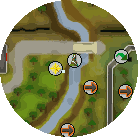
Add a Tip.It button to your web site:
© 1999 - 2026 RuneScape Tips, all rights reserved.
RuneScape® and Jagex® are trademarks of Jagex Ltd © 2000 - 2026 Andrew Gower.
Reproducing or copying any material found on this page is not allowed. Designed for IE8+, Firefox 3.5+, Safari 4+, Opera 10+, and Chrome by Mil.